



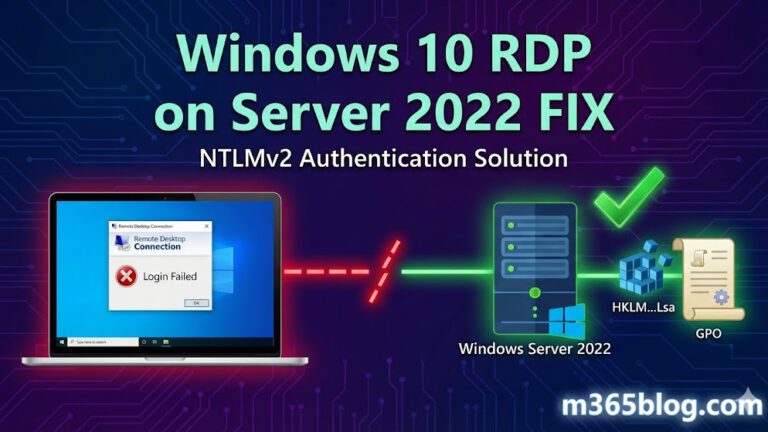
Have you recently migrated your Remote Desktop Services (RDS) environment to Windows Server 2022? You might have noticed a frustrating pattern: While modern Windows 11 clients connect perfectly, your Windows 10 clients are stuck in a login loop or fail with cryptic credential errors. In this post, we troubleshoot this specific NLA issue and provide the fix.
Upgrading to Windows Server 2022 brings better security and performance. However, these stricter security baselines can sometimes break compatibility with older clients. If you are facing a scenario where specific clients cannot connect despite valid credentials, the root cause is likely hidden in the NTLM authentication level.
The Scenario
Imagine you have deployed a fresh RDS Farm based on Windows Server 2022, including the RD Gateway and Broker roles. Initially, everything looks green. You test the connection with a Windows 11 client, and the desktop appears instantly.
However, the situation changes when a user tries to connect via a Windows 10 client. Although the RD Gateway authentication seems to succeed, the connection to the Session Host fails abruptly.
The Symptoms
The error manifests differently depending on where you look. On the client side, the user usually receives a generic error message stating „The logon attempt failed“ or „An internal error has occurred.“ Furthermore, the client might repeatedly prompt for credentials, even though the user is entering the correct password.
The Misleading Logs (Event ID 4625)
Troubleshooting becomes tricky because the logs can send you in the wrong direction. Specifically, if you check the Security Logs on the Session Host (or Domain Controller), you will likely see:
- Event ID: 4625
- Description: „An account failed to log on.“
- Failure Reason: „Unknown user name or bad password.“
Crucially, this error is misleading. The password is correct, but because the client and server failed to agree on the authentication protocol (NTLMv1 vs. NTLMv2), the server rejects the attempt as invalid. Additionally, looking at the Microsoft-Windows-TerminalServices-RDPClient/Operational log on the client might reveal Event ID 227, pointing towards internal connection errors.
Why this happens
Windows Server 2022 is „hardened“ by default. Consequently, it refuses legacy authentication responses like LM and NTLMv1. Many Windows 10 clients, especially in environments without strict security baselines, still attempt to use these older protocols during the handshake.
As a result, the server sees an insecure request and blocks it immediately, triggering the „Bad Password“ event log.
The Solution: Enforcing NTLMv2
To resolve this connectivity issue, you must force your clients to send only NTLMv2 responses. This ensures they speak the same security language as the Server 2022.
Method 1: The Group Policy (Recommended)
Since this issue likely affects your entire fleet of Windows 10 devices, using a Group Policy Object (GPO) is the most efficient method.
- Create a new GPO or edit an existing one linked to your Clients OU.
- Navigate to Computer Configuration > Windows Settings > Security Settings > Local Policies > Security Options.
- Locate the policy named: Network security: LAN Manager authentication level.
- Change the value to: Send NTLMv2 response only. Refuse LM & NTLM.
After applying this setting, run gpupdate /force on a test client.
Method 2: The Registry Fix (For Testing)
Alternatively, if you want to verify the fix on a single machine first, you can modify the registry directly.
- Open the Registry Editor (
regedit) on the affected client. - Navigate to:
HKEY_LOCAL_MACHINE\SYSTEM\CurrentControlSet\Control\Lsa - Find or create the DWORD value: LmCompatibilityLevel.
- Set the value to 5.

Summary
In conclusion, not every RDP connection failure is due to certificates or firewalls. If your Windows 10 clients fail to connect to Windows Server 2022 while generating Event ID 4625, check your LAN Manager Authentication Level. By shifting your clients to NTLMv2, you not only fix the connection but also improve the overall security of your network.