

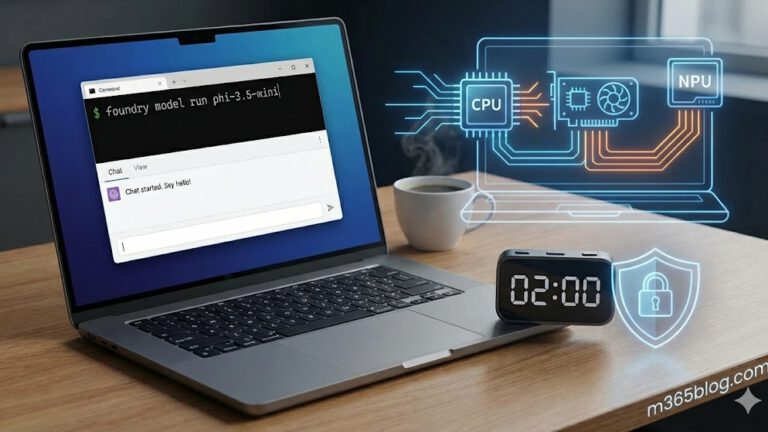
Welcome to the first part of my new series on Foundry Local. Over the coming weeks, I will be sharing specific use cases and deep dives into how we can leverage local AI to improve productivity without sending a single byte of data to the cloud.
For this first post, we are focusing on the „Wow“ factor: getting a powerful Large Language Model (LLM) running on your machine in under two minutes, with zero complex configuration.
Why Local AI?
Before we jump into the terminal, why should you care about running AI locally?
- Privacy: Your data never leaves your device. Perfect for sensitive drafts or internal data.
- Cost: No API fees, no subscription models.
- Offline Access: It works on a train, a plane, or anywhere without Wi-Fi.
The Problem with Most Local Tools
If you have tried running local models before, you know the struggle. You often have to download massive files, choose between confusing quantization formats (Q4_K_M? Q8_0?), and manually configure whether to use your CPU or GPU.
Foundry Local changes this. It removes the friction and makes local AI accessible to everyone.
Step-by-Step: Your First Local Chat with Foundry Local !
Let’s get you set up. We are going to install Foundry Local and run Microsoft’s Phi-3.5 Mini, a model that punches well above its weight class and is perfect for most laptops.
Step 1: Install Foundry Local
Open your Command Prompt or PowerShell and enter the following command. This uses winget, the standard package manager for Windows, to handle the installation cleanly.
winget install Microsoft.FoundryLocalWait for the progress bar to finish. That’s it. You don’t need to sign up for an account, register an API key, or configure a Docker container.
Step 2: Run the Model
Now that Foundry is installed, we can instantly pull and run a model. We will use Phi-3.5-mini, which is incredibly fast and efficient.
Type this command:
foundry model run phi-3.5-miniWhat happens next?
- Foundry Local will automatically download the model files (this might take a moment depending on your internet speed).
- Once downloaded, the chat interface opens directly in your terminal.
- You can start typing and chatting immediately.

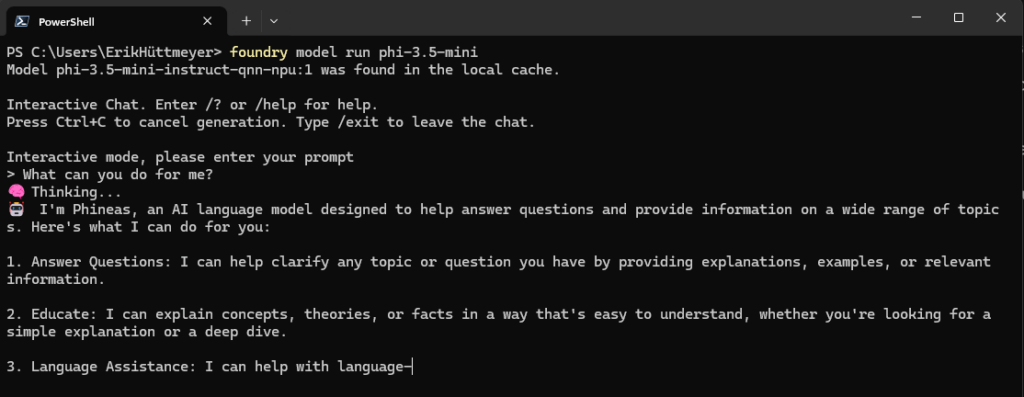
The „Magic“ Behind the Scenes of Foundry Local: Automatic Hardware Optimization
This is where Foundry Local truly shines compared to other tools.
Usually, when you run an LLM, you need to know your hardware specs. Do you have an NVIDIA GPU? Are you running on a generic CPU? Do you have one of the new Copilot+ PC NPUs?
With other tools, downloading the wrong version of a model can lead to slow performance or crashes.
Foundry Local handles this automatically.
When you run the command, the tool scans your hardware. It intelligently selects the best variant of the model for your specific device:
- GPU: If you have a dedicated graphics card, it utilizes it for maximum speed.
- NPU: If you have a Neural Processing Unit (like on Surface devices), it optimizes for efficiency.
- CPU: If you are on a standard laptop, it runs a version optimized for the processor.
You don’t need to be a hardware engineer to get the best performance—it just works.
Summary
In less than the time it takes to make a coffee, you have deployed a private, secure, and optimized AI assistant on your own hardware.
- No Cloud: 100% Private.
- No Login: Zero friction.
- No Config: Automatic hardware detection.
What’s Next?
Now that you have the engine running, what can you actually do with it? In the next article of this series, we will move beyond simple chat and look at how to integrate Foundry Local into your daily workflows and automation scripts.
Stay tuned!
Check out my Blog Post about the Microsoft Foundry Cloud Version!